
Creating a report - the basics
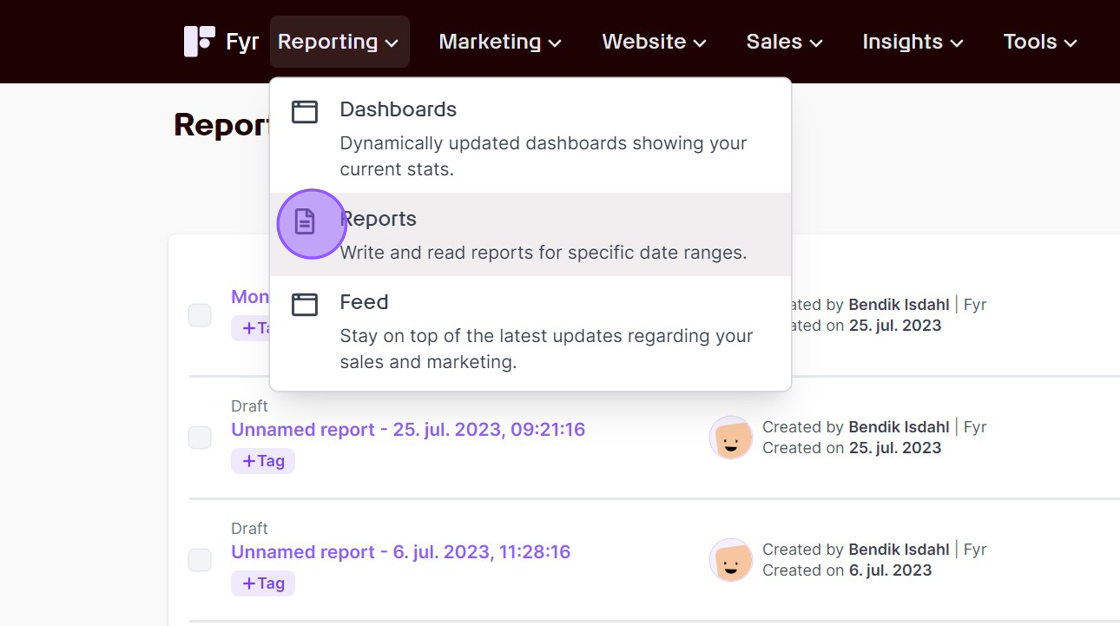
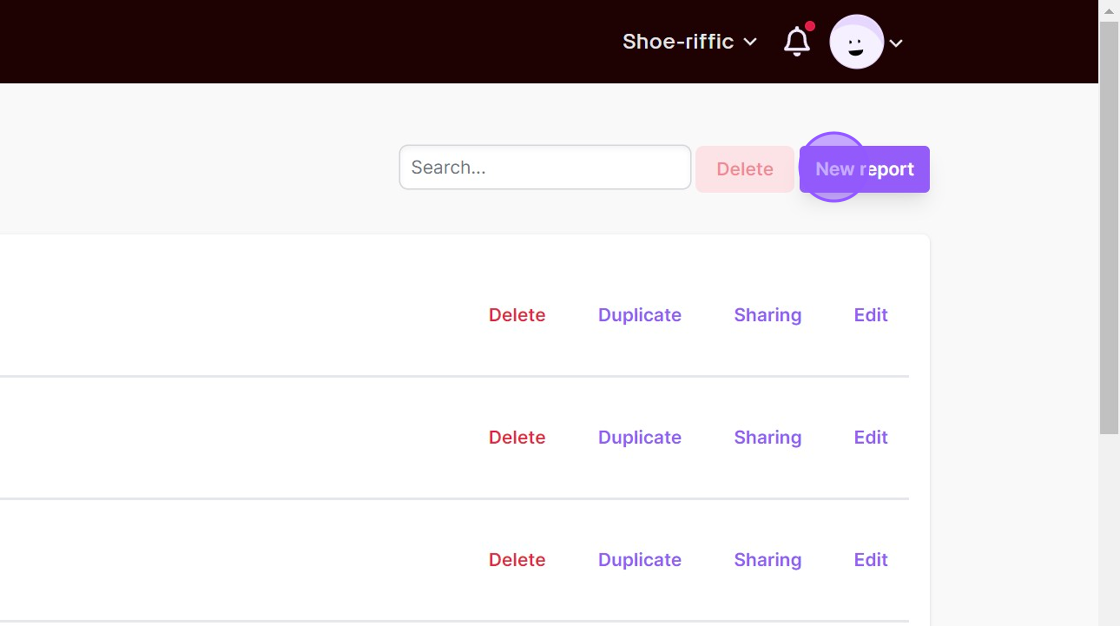
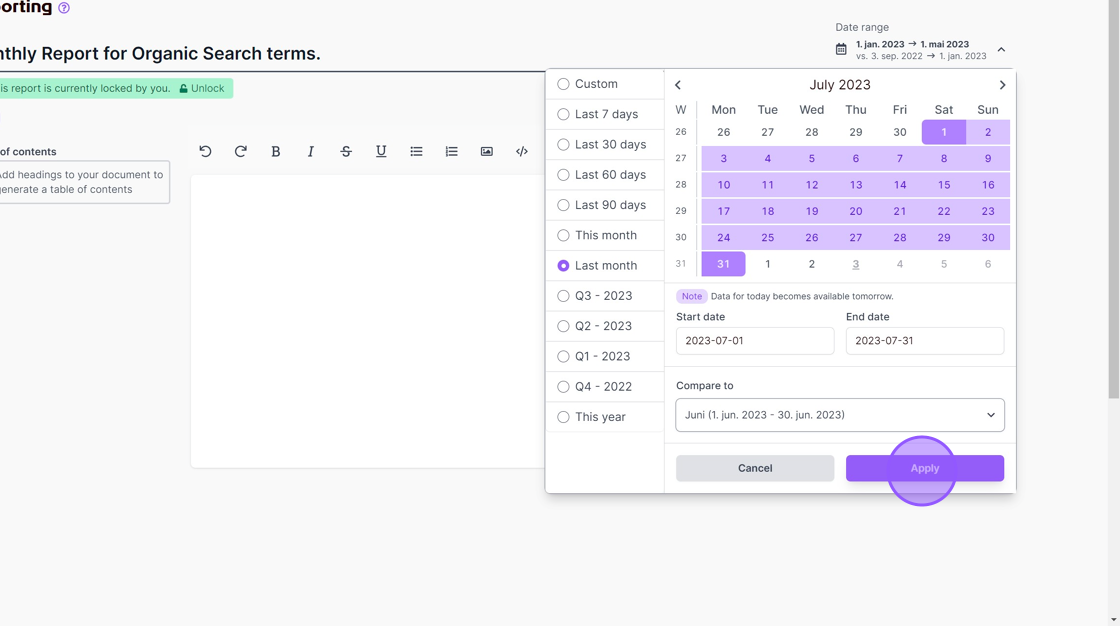
Adding text
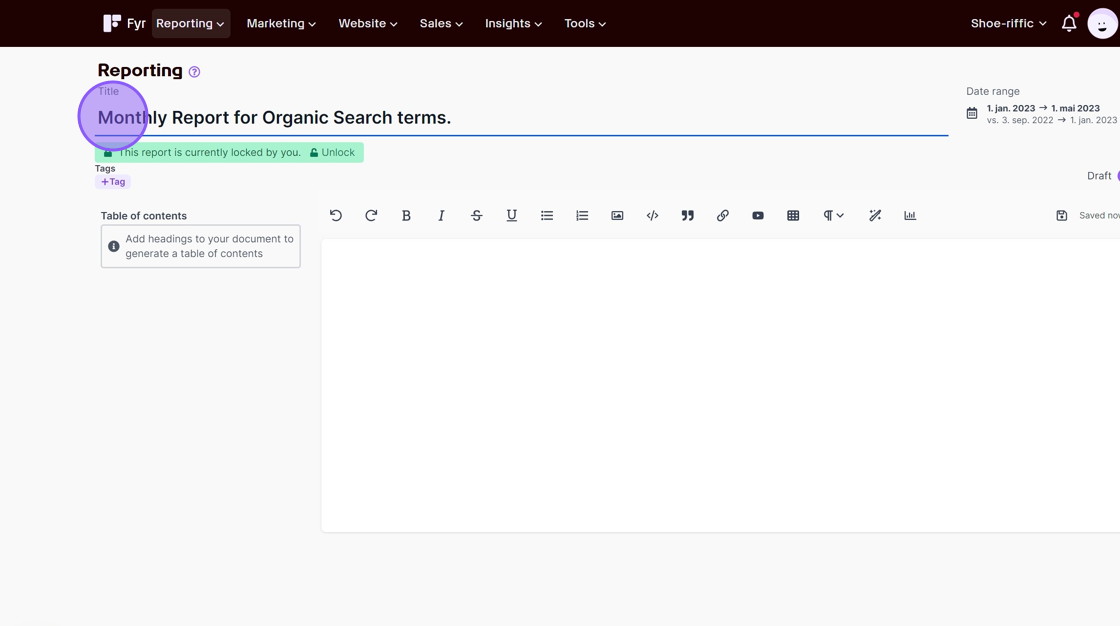
While in "Edit" mode, you can effortlessly insert text by selecting the desired location within the document and commencing typing. Our edit function is designed as a comprehensive text editor that allows for the seamless incorporation of various elements, including text, tables, media (such as images), and data widgets.
Use AI to generate text
Within our system, we have incorporated an AI assistant designed to facilitate the composition of your report text. Simply furnish a minimum of 10 characters as input, and the AI will proficiently handle the remainder of the writing process for you.
Adding a headline
Simply click the "Text styles" button and choose the headline size you prefer (from h1 to h3). You can also mark the text you'd like to be a headline, and then click the "Text styles" button.
Adding a table of contents
You'll automatically get a table of contents based on your headlines. Simply make sure to use proper headlines in your text, and you're good to go.
Adding data
To add data to your report, you first need a widget for your data. To add a widget, simply click the "Add widget" icon.
Removing a widget/data
You can remove a widget by simply placing your cursor to the right of the widget, and hit backspace.
Comments
0 comments
Article is closed for comments.