
Most pages in Fyr have a filter bar at the top that lets you narrow down what you see. Filters apply to all charts, tables, and cards on the page — so everything updates at once when you change a filter.
Common filters
Date range
Available on every data page. Pick a preset (last 7 days, this month, etc.) or set a custom range. You can also enable a comparison period to see how metrics changed versus a previous time frame.
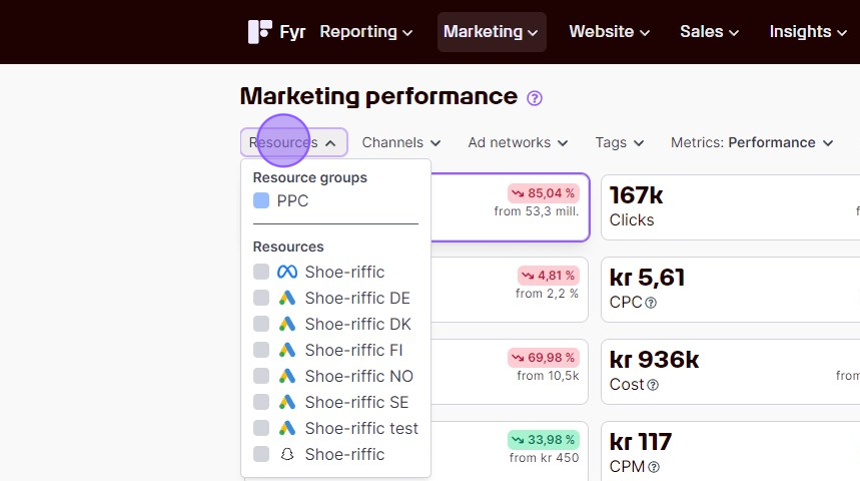
Resources
Choose which connected accounts to include. Some pages show a multi-select (pick several accounts), while others use a single-select (one account at a time, like Website Analytics).
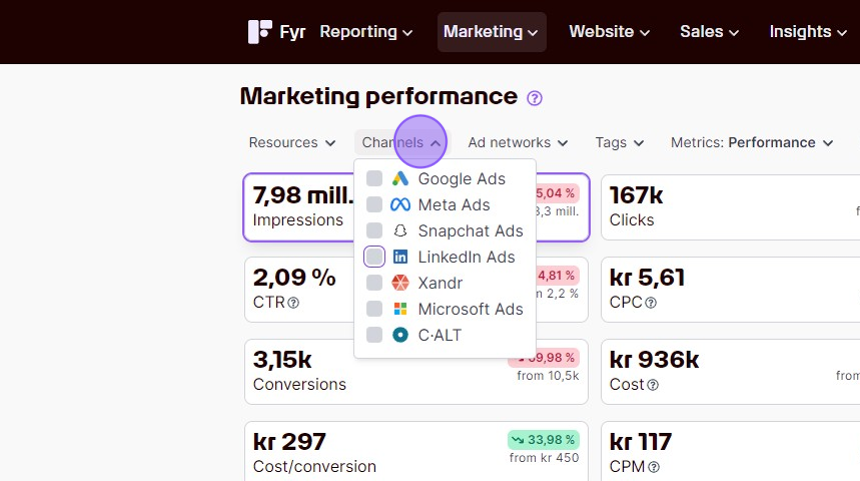
Channels
In Ad Performance, filter by specific ad platforms — for example, show only Meta Ads and Google Ads data.
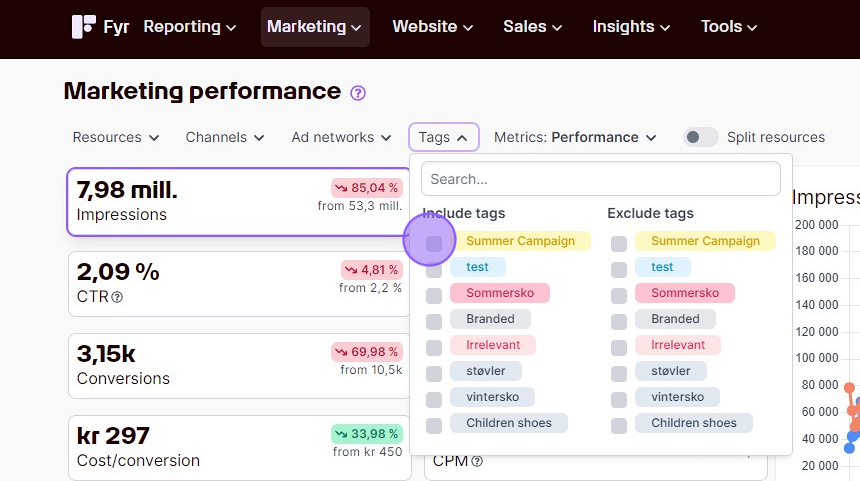
Tags
If you've tagged campaigns, ads, or other items, you can filter by those tags. You can also exclude specific tags to hide tagged items from view.
Conversion Groups
In Ad Performance, filter to show only specific conversion groups (e.g. only "Purchase" conversions). Manage your conversion groups under Settings → Edit Conversions.
Conversion filter (Website Analytics)
In Website Analytics, the Conversions dropdown lets you select specific GA4 conversion events (e.g. "purchase", "sign_up") to view data only for those events. This filter works across both the Conversions tab and the Acquisition tab.
Metric filters
Some tables support metric-based filtering — for example, "show only campaigns with more than 100 clicks" or "show posts with engagement above 50". Look for the filter icon near the table.
Dimensions
In Website Analytics tables and some other views, you can choose which dimensions to break data down by — source, medium, campaign, device, country, and many more. Select from the dropdown above the table.
Search
Most tables have a search box to find specific items by name (campaigns, pages, search terms, etc.).
Filters are shareable
All your filter selections are saved in the page URL. Copy the URL from your browser to share the exact view — including date range, selected accounts, and active filters — with a colleague.
Resetting filters
Look for the clear/reset option in the filter bar to return to the default view. Filters reset automatically when you navigate to a different section of the app.
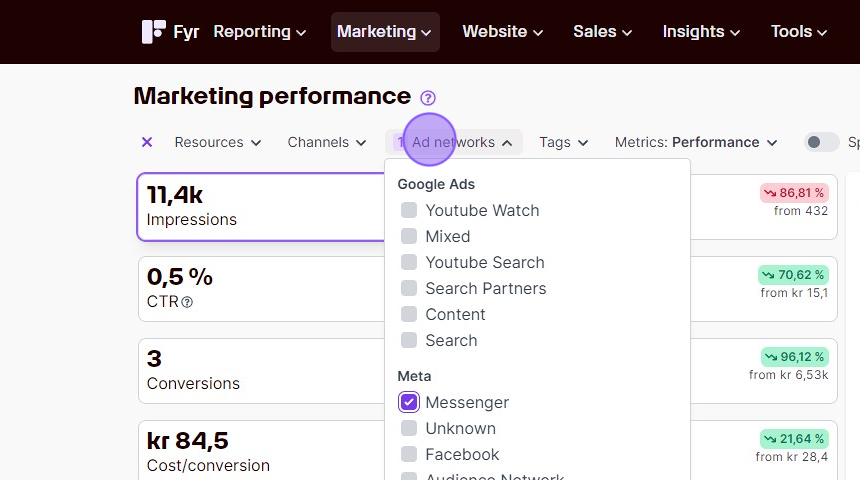
Using the built-in filter in the various views is a great way to quickly get the specific data set you're looking for! Our filters varies slightly from view to view, so we've used the "Marketing Performance" view as an example on how you can apply filters. Common for all types is that you'll only get data based on the filter you're adding. The standard for Fyr is that no filter is applied, and you'll get all available data. In addition to the filters you can use for the specific report you're looking at, we've also created specific filters on some of our subsets of data and tables, that allows you to combine metrics and insights to get even more detailed information. Please see our page on relative metric filters for information on how to use these.
Comments
0 comments
Article is closed for comments.